
I've just added RSS feed subscription feature to my blog, so I think it would be nice to write a simple, general guide on how to subscribe to an RSS feed. I guess it would be helpful for general users of my blog.
What's RSS, btw?
RSS stands for Really Simple Syndication. RSS allows us to view web contents in their most simplest form so that they can be delivered to us more neatly. For example, you can find the RSS page for this blog at blog.gofhilman.my.id/rss.xml. You can see there that the RSS feed is nothing more than XML code about this blog pure content that follows the rules set by RSS specification. RSS feeds are then delivered to us via RSS feed reader that can check the update of the RSS pages using specific interval polling method. You can find more interesting things about RSS in this article.
So, what's so special about RSS?
Apart from providing a structured way to collect and manage our RSS feed subscriptions, RSS also lets us to subscribe to feeds without the need to provide personal information. This means we don't need to register our email. In other words, we avoid receiving spam from the websites we subscribe to. Instead, we get a highly customizable list of content from RSS feeds.
How to subscribe to an RSS feed
First, we need an RSS feed reader to manage our RSS feeds. Some popular recommendations for cloud RSS feed readers are Feedly and Inoreader. They both have deep customization and automations, as well as integrate nicely with other services. But in this post, I will use Feeder, my personal recommendation, for these reasons:
- It has minimalist and intuitive user interface so it won't overwhelm us with too much options like in Inoreader, for example.
- Feeder offers a generous free plan. While Feedly allows only 100 feeds and Inoreader allows 150 feeds, Feeder provides 200 feeds to be managed in its free plan.
- Feeder has a Chrome extension that notifies us through badge counts or direct browser notification, which is useful for staying updated on new posts immediately.
After registering our account in Feeder, we can download its Chrome extension at this page. Then, we can login and open the UI in a new page. You will see the home page like the following image.
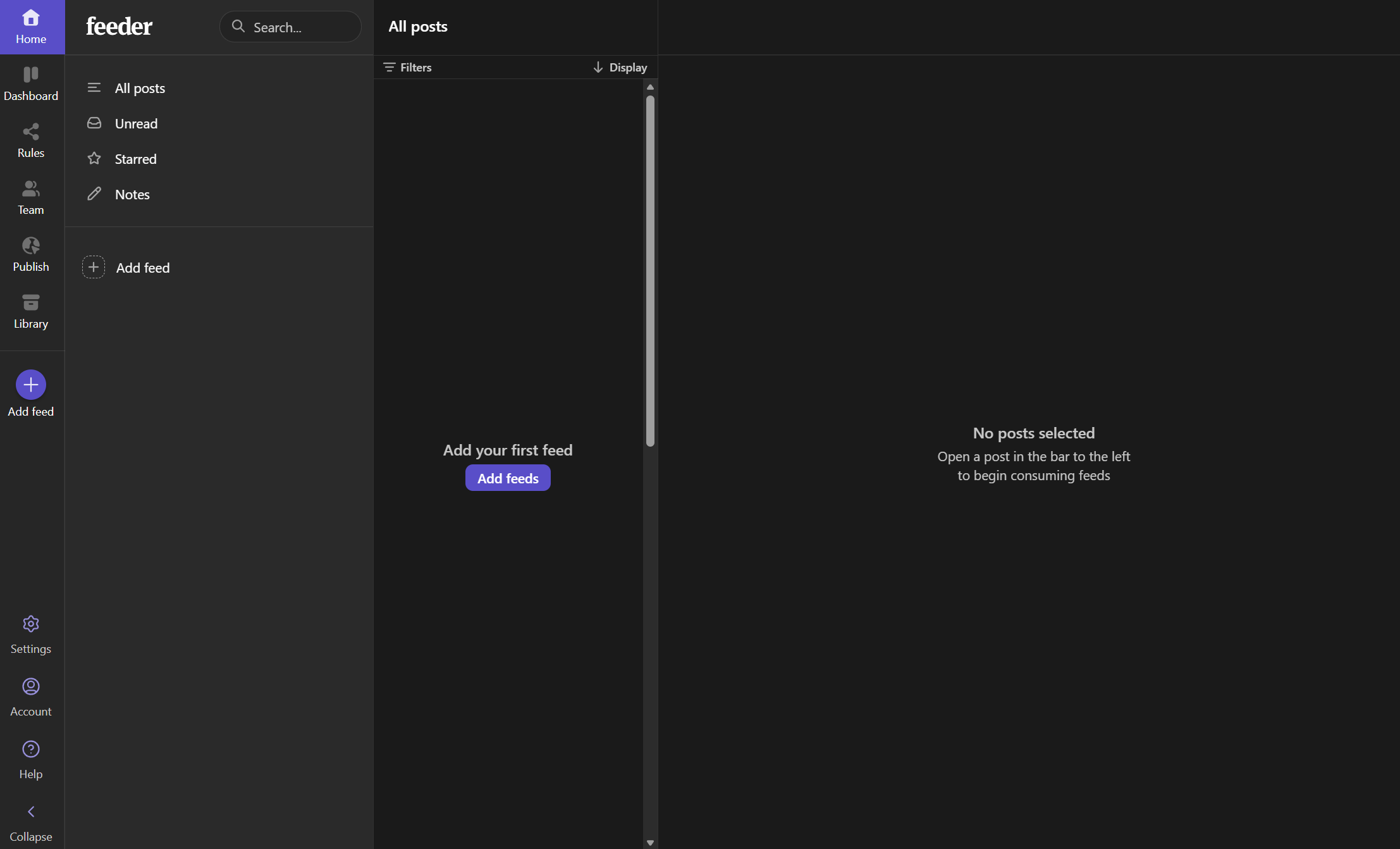
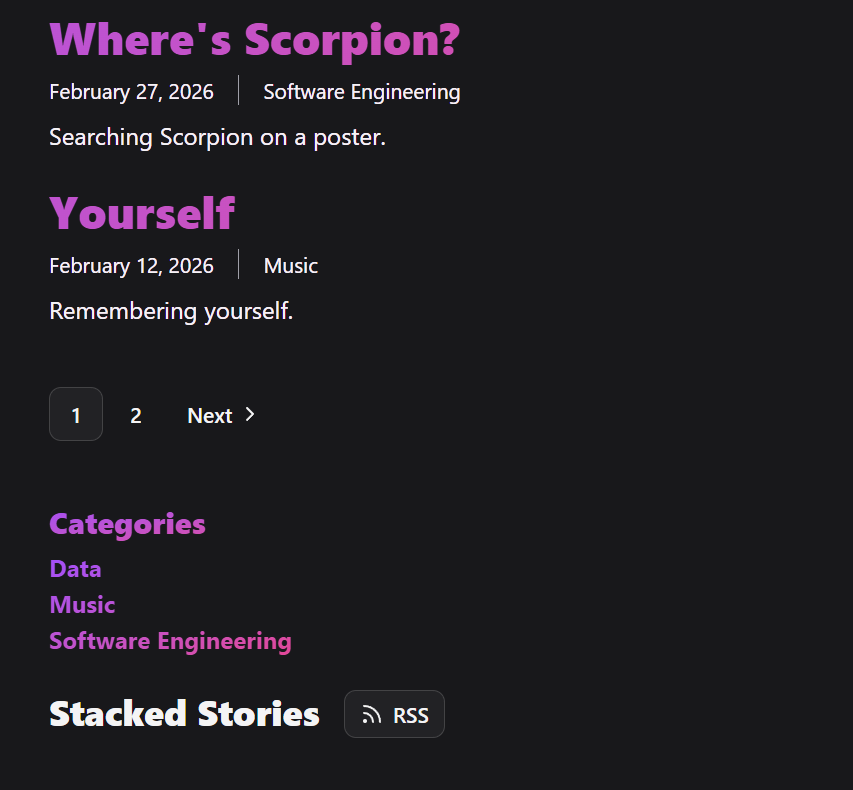
Click "Add feed" and copy this blog RSS page URL into the search box. You can also access my blog RSS page by clicking the RSS button at the bottom section of my blog:
You will go into like this following image.
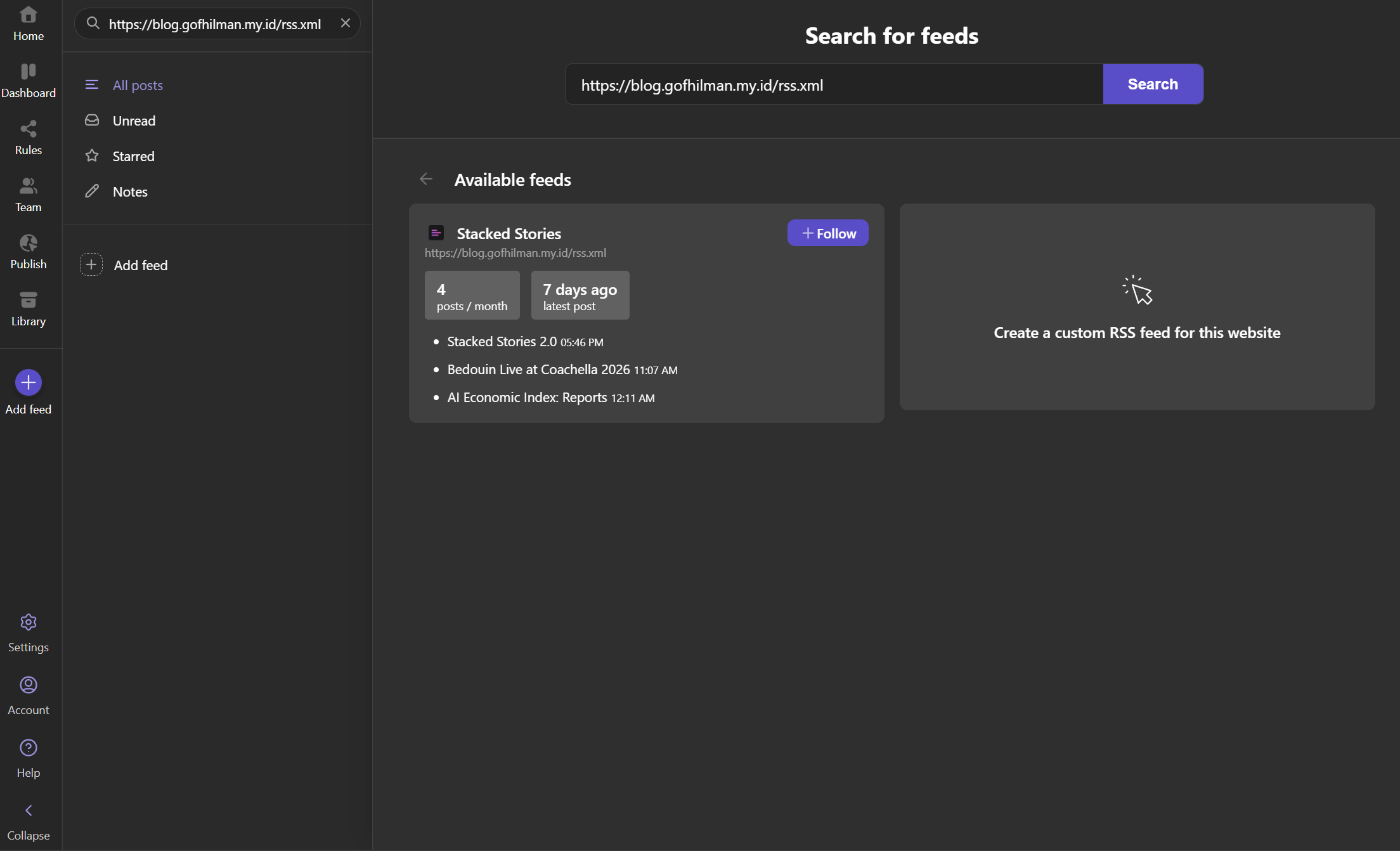
Then, we can click "Follow" button on the Stacked Stories item, and done! Now, we've succesfully subsribed to my blog RSS feed! Additionally, we can create folders to organize our feeds.
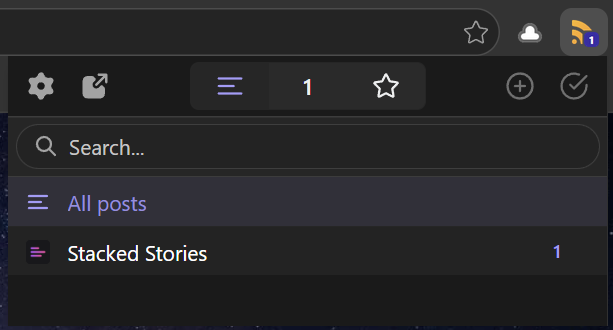
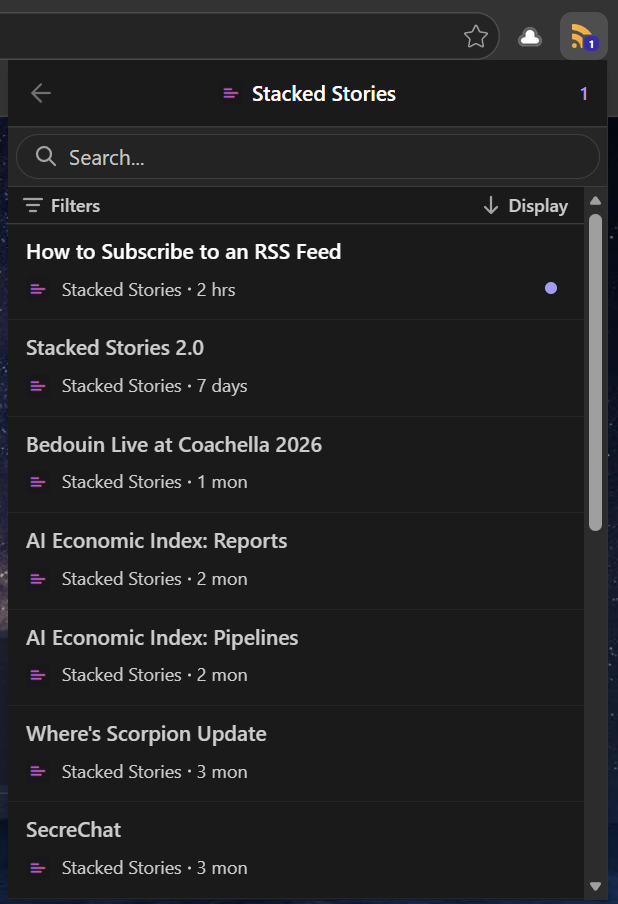
Whenever there's a new post in our feeds, the badge count will appear on the extension button. If we've enabled notifications, we'll also receive an alert. To check out the new post, we can simply click the extension button and explore the feed, as shown in the example image below.
So, that's it about how to subscribe to an RSS feed, especially for this blog. Let me know in the comment if you encounter some problems or you just want to discuss about RSS.